Reading & Clearing DTCs (Trouble Codes)
This guide provides comprehensive instructions to query Diagnostic Trouble Codes (DTCs) from your vehicle and generate readable text strings within Home Assistant. This is an involved process but highly rewarding for building a custom digital dashboard.
!NOTE This workflow requires the Beta 9 (or newer) firmware from the forked
wambs/wican-fwreleases. You will also need to manually search for your specific vehicle manufacturer's DTC definitions to build your dictionary.
Phase 1: Creating the DTC Query in the WiCAN Web UI
We will configure the WiCAN to broadcast a Mode 03 command, process the hex data using the custom firmware, and publish it directly to a dedicated MQTT topic.
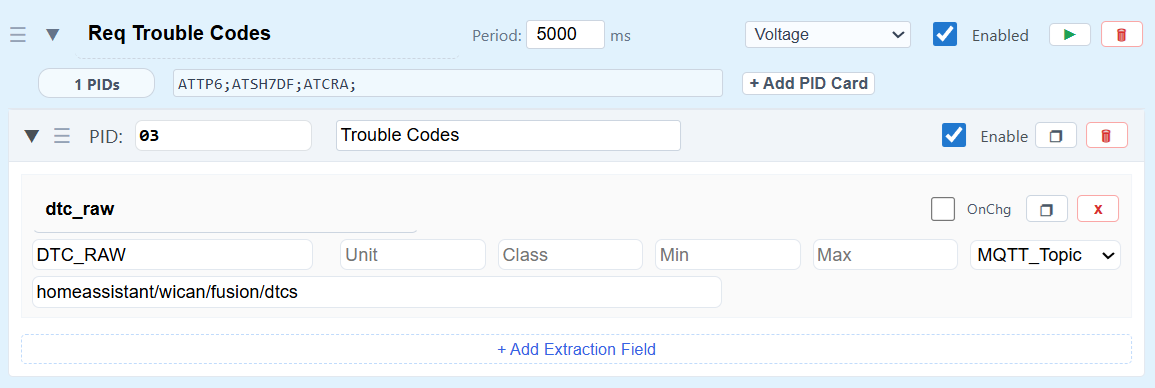
- Open your WiCAN Pro Web UI in your browser.
- Navigate to the Automate tab and select the Vehicle Groups section.
- Click Add New Group and configure the group:
- Init: This maybe vehicle dependent, mine was
ATTP6;ATSH7DF;ATCRA; - Polling Interval:
60000(Polling every 60 seconds prevents choking the CAN bus).
- Init: This maybe vehicle dependent, mine was
- Add a new PID to the group with the following parameters:
- Name:
DTC_RAW(This dictates your JSON key in the payload). - MQTT Topic (Send_to):
homeassistant/wican/your_car/dtcs(This explicitly routes this specific PID's data to its own topic). - PID:
03(The OBD2 standard for requesting DTCs). - Expression:
DTC_RAW(Triggers the custom C loop to merge the multi-frame ISO-TP data).
- Name:
Once saved, your WiCAN will begin broadcasting to your new dedicated topic.
- An active payload will look like:
{"dtc_raw": "4303C60FC68B2104"}. - A clear payload (no DTCs) will look like:
{"dtc_raw": "4300"}.
Phase 2: The Home Assistant Sensor (configuration.yaml)
Now we ingest that optimized hex string from your new dedicated topic. Open your Home Assistant configuration.yaml file and add the following under your mqtt: sensor: block.
Note: Be sure to change the device anchor (*f350_device) and topics to match your setup.
      - name: "F-350 Active DTCs"
        default_entity_id: "sensor.f350_dtcs"
        unique_id: "f350_dtcs"
        device: *f350_device
        state_topic: "homeassistant/wican/f350/dtcs"
        icon: mdi:engine-outline
        # 1. Keep the main state under 255 characters
        value_template: >-
          {%- set ns = namespace(payload='') -%}

          {# Safety check: Only loop items if it's actually a JSON dictionary #}
          {%- if value_json is defined and value_json is mapping -%}
            {%- for key, val in value_json.items() -%}
              {%- set clean_val = val | string | replace(' ', '') | upper -%}
              {%- set idx = clean_val.find('43') -%}
              {%- if idx != -1 -%}
                {%- set ns.payload = clean_val[idx:] -%}
              {%- endif -%}
            {%- endfor -%}
          {%- else -%}
            {# If it's a raw string, bypass JSON parsing entirely #}
            {%- set clean_val = value | string | replace(' ', '') | upper -%}
            {%- set idx = clean_val.find('43') -%}
            {%- if idx != -1 -%}
              {%- set ns.payload = clean_val[idx:] -%}
            {%- endif -%}
          {%- endif -%}

          {%- if ns.payload.startswith('43') and ns.payload | length >= 4 -%}
            {%- set count = ns.payload[2:4] | int(base=16, default=0) -%}
            {{- 'System Clear' if count == 0 else count ~ ' Active Codes' -}}
          {# THE MEMORY FIX: If the payload is bad/missing, echo our own last known state! #}
          {%- elif states('sensor.f350_dtcs') not in ['unknown', 'unavailable'] -%}
            {{- states('sensor.f350_dtcs') -}}

          {# If Home Assistant freshly rebooted and has no history, default to quiet. #}
          {%- else -%}
            System Clear
          {%- endif -%}

        json_attributes_topic: "homeassistant/wican/f350/dtcs"
        json_attributes_template: >-
          {%- from 'ford_dtc.jinja' import get_meaning -%}
          {%- set ns = namespace(payload='', codes=[], details=[]) -%}

          {%- if value_json is defined and value_json is mapping -%}
            {%- for key, val in value_json.items() -%}
              {%- set clean_val = val | string | replace(' ', '') | upper -%}
              {%- set idx = clean_val.find('43') -%}
              {%- if idx != -1 -%}
                {%- set ns.payload = clean_val[idx:] -%}
                {%- set count = ns.payload[2:4] | int(base=16, default=0) -%}
                {%- if count > 0 -%}
                  {%- for i in range(count) -%}
                    {%- set offset = 4 + (i * 4) -%}
                    {%- if ns.payload | length >= offset + 4 -%}
                      {%- set dtc_hex = ns.payload[offset:offset+4] -%}
                      {%- set first_char = dtc_hex[0] -%}
                      {%- set prefix = {'0':'P0', '1':'P1', '2':'P2', '3':'P3', '4':'C0', '5':'C1', '6':'C2', '7':'C3', '8':'B0', '9':'B1', 'A':'B2', 'B':'B3', 'C':'U0', 'D':'U1', 'E':'U2', 'F':'U3'} -%}
                      {%- set dtc = prefix.get(first_char, 'P0') ~ dtc_hex[1:] -%}
                      {%- set meaning = get_meaning(dtc) | trim -%}
                      {%- set ns.codes = ns.codes + [dtc] -%}
                      {%- set ns.details = ns.details + [dtc ~ ': ' ~ meaning] -%}
                    {%- endif -%}
                  {%- endfor -%}
                {%- endif -%}
              {%- endif -%}
            {%- endfor -%}
          {%- endif -%}

          {# DIAGNOSTIC X-RAY ADDED TO JSON OUTPUT #}
          {{- {"active_codes": ns.codes, "descriptions": ns.details, "debug_payload": ns.payload, "debug_count": count} | tojson -}}
Phase 3: The Dictionary Macro
- For the YAML above to work, Home Assistant needs a dictionary file to look up the English definitions of the codes.
- In your Home Assistant config directory (where configuration.yaml lives), create a folder named exactly custom_templates.
- Inside that folder, create a file named ford_dtc.jinja (or name it appropriately for your car brand).
Paste your mapping macro inside it:
{% macro get_meaning(dtc) %}
{% set dtc_map = {
  'U060F': 'Lost Communication with Mass or Volumn Air Flow Sensor A',
  'U068B': 'Lost Communication with Turbocharger/Supercharger Inlet Pressure Sensor A',
  'P2104': 'Electronic Throttle Control System - Forced Idle'
  /* ... paste your entire factory list here ... */
} %}
{{ dtc_map.get(dtc, 'Unknown Code - Refer to Factory Service Manual') }}
{% endmacro %}
Crucial Step: Restart Home Assistant completely so it registers the new .jinja file and applies the configuration.yaml changes.
Phase 4: The Dashboard UI
Finally, we build the interactive dashboard element. This uses a custom button that toggles a dropdown list of your faults on a single tap, and clears the codes on a long press.
- Go to Settings > Devices & Services > Helpers and create a Toggle helper named Show F350 Codes (this creates input_boolean.show_f350_codes).
- Add this YAML to your Lovelace dashboard:
type: vertical-stack
cards:
  # 1. THE INTERACTIVE CHECK ENGINE BUTTON
  - type: custom:button-card
    entity: sensor.f350_dtcs
    name: CHECK ENGINE
    icon: mdi:engine
    show_name: true
    show_icon: true

    tap_action:
      # Tapping toggles the dropdown list
      action: call-service
      service: input_boolean.toggle
      service_data:
        entity_id: input_boolean.show_f350_codes

    hold_action:
      # Long press sends Mode 04 to wipe the codes and turn off the CEL
      action: call-service
      service: mqtt.publish
      service_data:
        # ---> BASE TX TOPIC TO CLEAR CODES <---
        topic: "homeassistant/wican/f350/tx"
        payload: "04\r"

    styles:
      card:
        - width: 110px
        - height: 110px
        - background-color: '#1a1a1a'
      icon:
        - width: 50px
      name:
        - font-size: 10px
        - font-weight: bold

    state:
      - value: System Clear
        color: '#333333'
        styles:
          card:
            - border: none
          icon:
            - color: '#444'
            - animation: none
          name:
            - color: '#444'
Phase 5: Home Assistant Alert Automation (Optional)
You can set up an automation to notify you (via text message or smart speakers) immediately when the truck throws a new code.
alias: "F-350: New DTC Detected"
description: Alerts when the truck throws a new diagnostic trouble code.
trigger:
  - platform: state
    entity_id: sensor.f350_dtcs
condition:
  - condition: template
    value_template: "{{ 'Active Codes' in trigger.to_state.state }}"
  - condition: template
    value_template: "{{ trigger.from_state.state == 'System Clear' }}"
action:
  - service: notify.notify
    data:
      message: "Attention: The vehicle is reporting {{ trigger.to_state.state }}."
mode: single