Power Saving & Sleep Mode
Since the WiCAN Pro remains plugged into your vehicle's OBD2 port 24/7, managing power consumption is critical. The Power Saving tab allows you to configure exactly when the device should power down to protect your car's battery, and when it should wake up to report data.
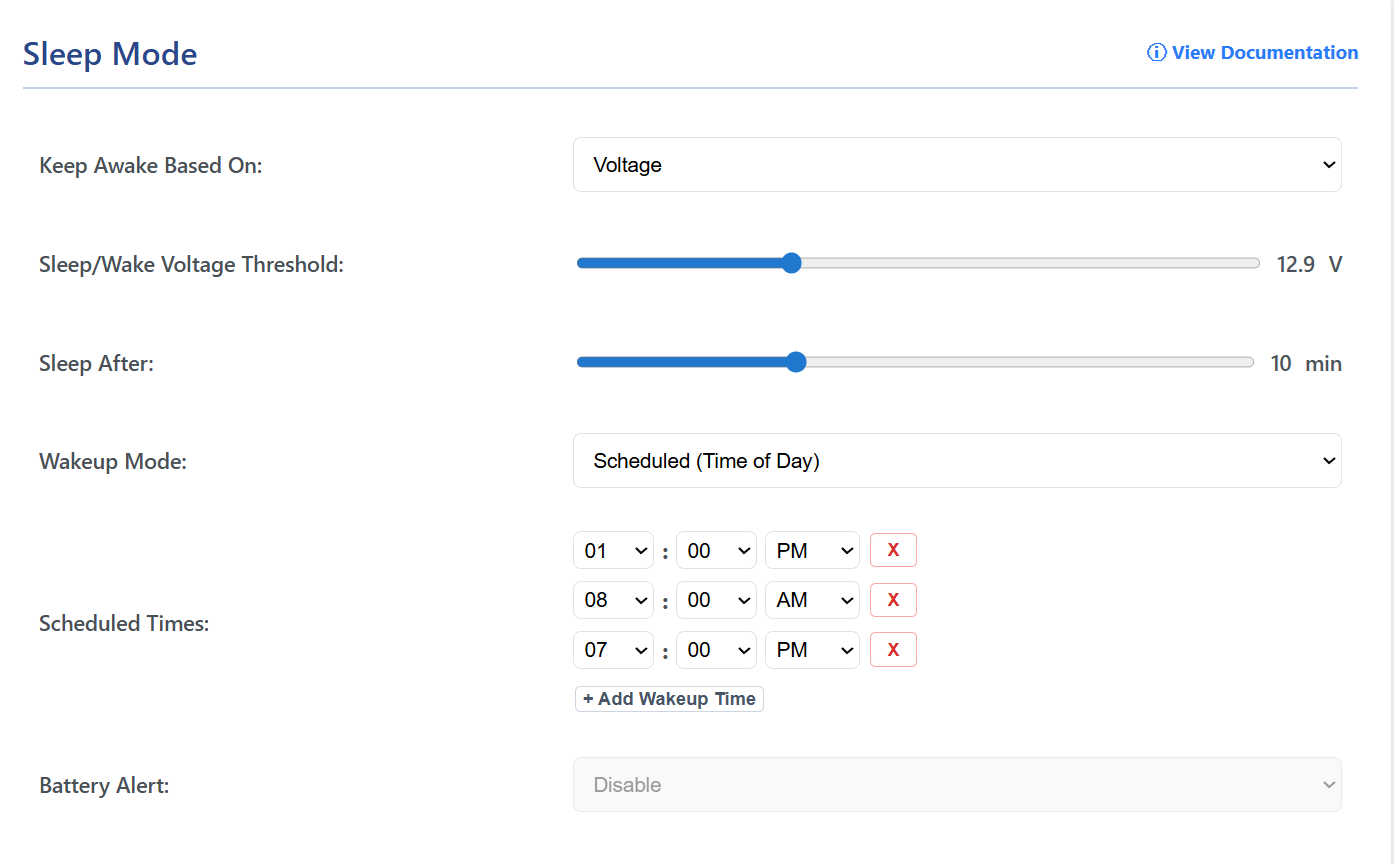
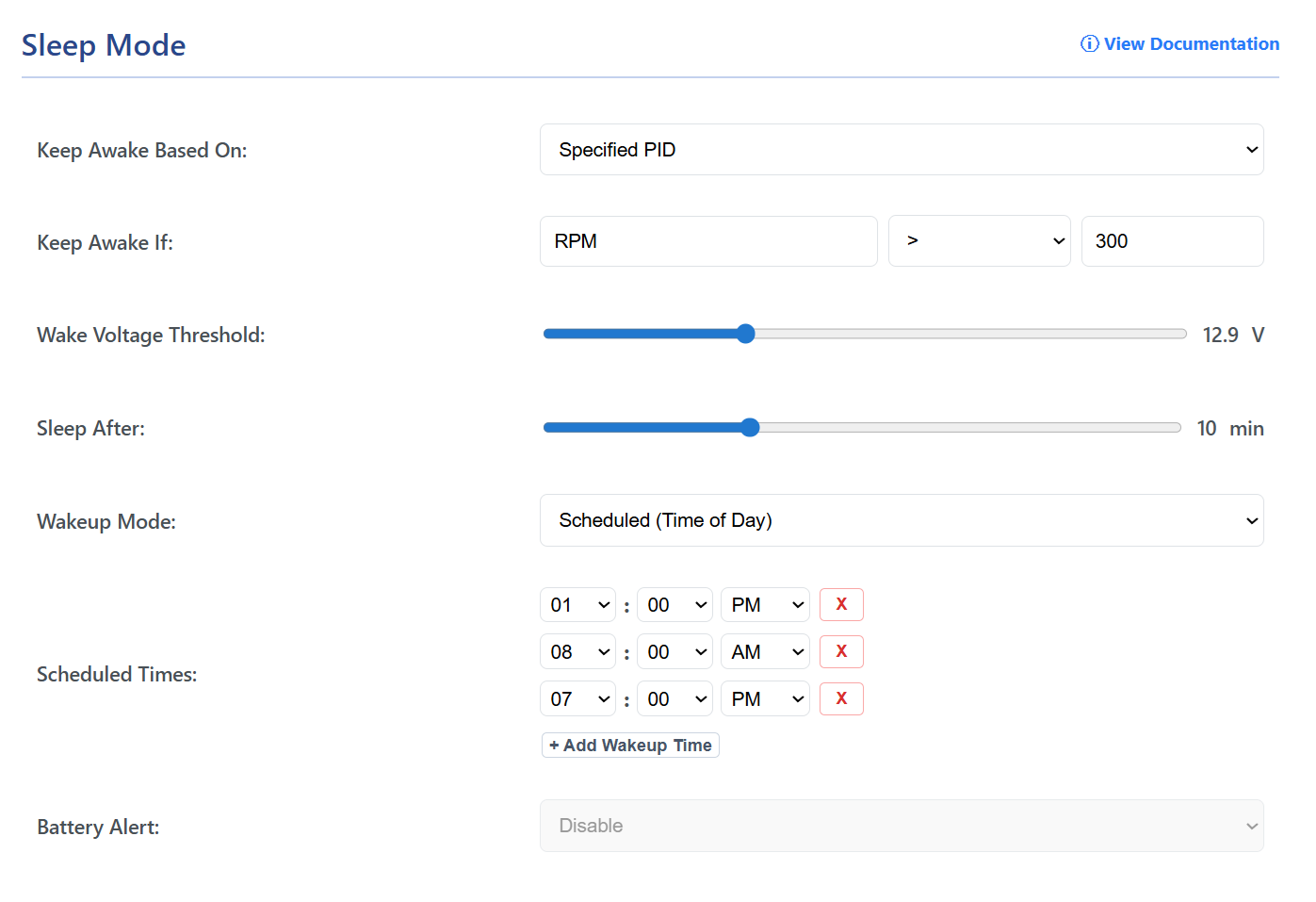
1. Core Sleep Configuration
The WiCAN Pro can determine if your vehicle is running or parked by monitoring the 12V system voltage, or by querying specific vehicle data (PIDs). When using voltage, it looks for the high voltage of a spinning alternator (usually 13.5V+) or the lower resting battery voltage when off (usually ~12.6V).
| Setting | Description |
|---|---|
| Keep Awake Based On | Master toggle to define the power-saving rule (Disable, Voltage, or Specified PID). |
| Keep Awake If | (If Specified PID is selected) The target PID name, operator (>, <, ==), and value that must be met to keep the device awake. |
| Sleep/Wake Voltage Threshold | (If Voltage is selected) The threshold that triggers the sleep timer (Range: 12.0V - 15.0V). |
| Sleep After | How long the condition must fail before the device actually powers down (Range: 1 - 30 mins). |
How the Sleep Logic Actually Works
Behind the scenes, the firmware operates on a strict state machine to prevent "bouncing" (falling asleep and waking up rapidly if conditions fluctuate):
- Condition Fails: When the battery voltage drops below your Sleep Voltage setting, or your Specified PID condition is no longer met, the WiCAN enters a warning state and starts the Sleep After countdown timer.
- Timer Expires: If the condition stays unmet for the entire duration of the timer, the WiCAN gracefully shuts down the CAN transceiver, drops the Wi-Fi/VPN connections, and enters deep sleep.
- The Wakeup Trigger: The device monitors the voltage even while sleeping. If the voltage spikes by at least
+0.1Vabove your Sleep Voltage setting (indicating the engine or EV contactors have started), it wakes up. Alternatively, if configured with a Periodic Interval, it wakes up automatically to check the PID status. - Resuming Operation: Once the condition is stable, the WiCAN resumes standard operation.
!WARNINGDisabling Sleep Mode will keep the Wi-Fi, CAN transceiver, and main processor running indefinitely. This will continuously drain your vehicle's battery and should only be used temporarily for testing or diagnostics.
2. Electric Vehicles (EVs) & "Probe and Sleep"
If you drive a modern EV (or certain hybrids), the standard Voltage sleep mode may not work reliably. EVs routinely activate their high-voltage DC-DC converters to top off the 12V battery while parked, which keeps the 12V bus voltage artificially high and prevents the WiCAN Pro from sleeping.
For EVs, it is highly recommended to use the "Specified PID" mode.
Modern EVs aggressively isolate their CAN bus gateways when parked. If you configure the WiCAN Pro to stay awake based on a PID (like Engine RPM > 0), the device will periodically wake up to probe the car.
- If the car is parked, the CAN bus is asleep, and the PID request will simply time out.
- The WiCAN Pro's "Probe and Sleep" architecture interprets this timeout as the vehicle being "Off" and instantly returns to sleep, effectively preventing 12V battery drain without relying on voltage drops.
3. Background Polling
Even when your vehicle is parked and the WiCAN is asleep, you may still want to check in on the battery health or other vehicle info like tire pressure. You can configure the WiCAN to periodically wake up, connect to Wi-Fi, run its Automate groups, and go back to sleep. For Vehicle Group, since the car is most likely off, not running, you want the Vehicle Group set to Always.
- Disable Wakeups: The device will only wake up when you physically start the vehicle (or a voltage spike triggers a wake event).
- Periodic Interval: Wakes the device up every
Xminutes (e.g., every 60 minutes) for a brief data sync. (Note: This is required if using the "Specified PID" sleep mode so the device can check if the car has turned on). - Scheduled (Time of Day): Wakes the device up at specific times. You can add multiple triggers (e.g.,
08:00 AMand08:00 PM).
!NOTE Scheduled wakeups rely on the Local Timezone setting. You must ensure your timezone is configured correctly in the System tab for this feature to trigger at the correct local time.