Status Dashboard
The Status tab is the default landing page when you connect to your WiCAN Pro. It provides a real-time, comprehensive snapshot of the device's current health, network connections, and vehicle data.
To manually refresh the data on this page at any time, click the Check status button at the very bottom.
The Status page is divided into three distinct sub-tabs to organize the information clearly.
1. Network
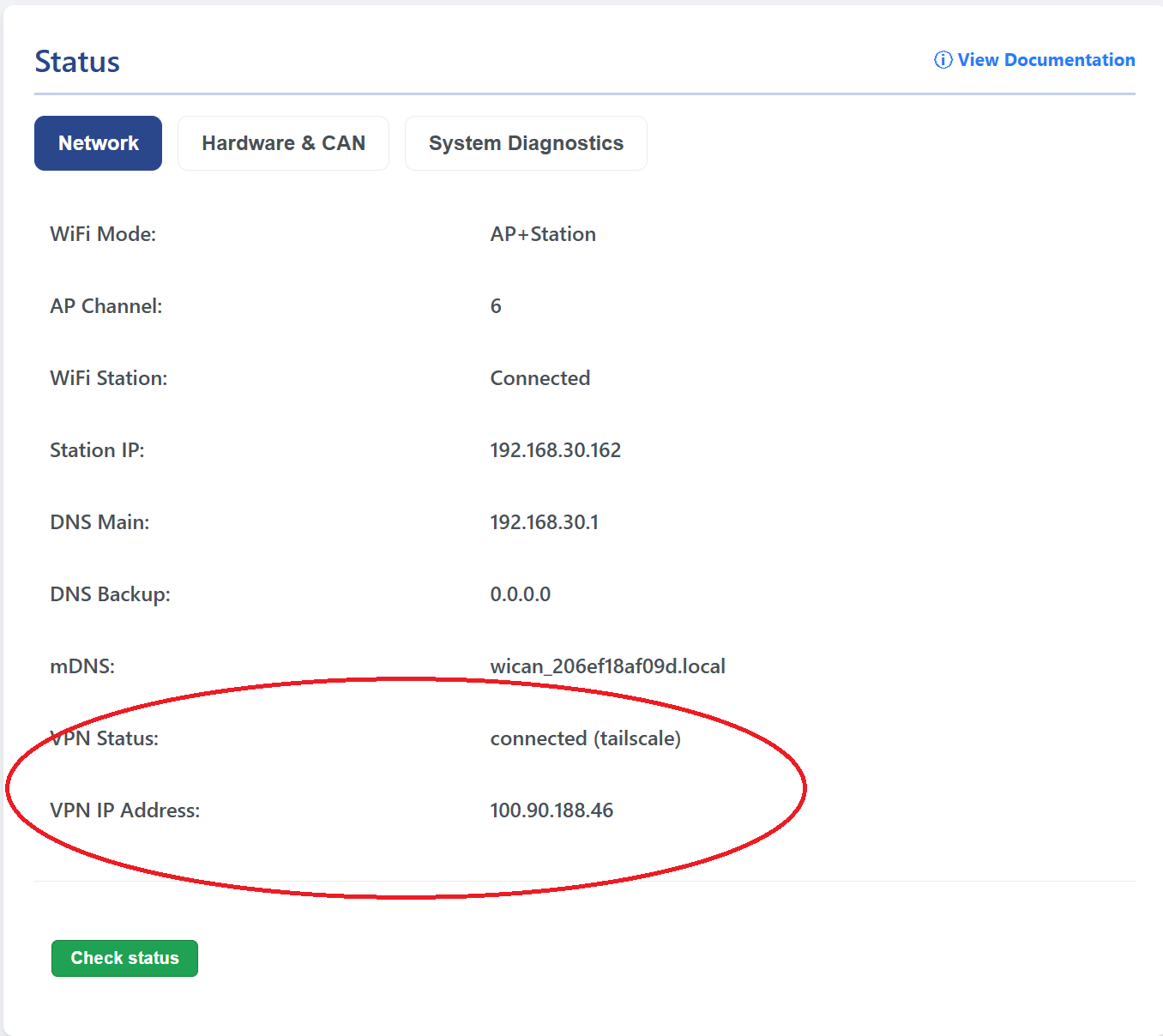
This tab details how your device is currently communicating with the outside world, which is critical for ensuring your MQTT payloads, Webhooks, and external apps are functioning properly.
- WiFi Mode: Shows the active wireless state of the WiCAN Pro.
AP: Broadcasting its own Wi-Fi hotspot.Station: Connected to your home network or mobile hotspot.AP+Station: Running both modes simultaneously.BLE+Station: Bluetooth Low Energy is active alongside the Station connection.SmartConnect: Automatically switching between Home and Drive networks.
- AP Channel: The Wi-Fi channel (1-14) being used if the WiCAN is broadcasting its own Access Point. If you experience interference with third-party apps, checking this channel is a good first step.
- WiFi Station: Displays whether the device has successfully connected to your configured home router or mobile hotspot (Connected / Not Connected).
- Station IP: The local IP address assigned to the WiCAN by your router. This is the exact IP address you must enter into third-party apps (like Home Assistant, RealDash, or FORScan) to connect over your local network.
- DNS Main / Backup: The primary and secondary Domain Name System servers the device is using to resolve web addresses. If these read "N/A", the WiCAN will not be able to resolve URLs for Webhooks, MQTT brokers, or ABRP integrations.
- mDNS: The local multicast hostname (usually
wican.local) that can be used to access the UI in your web browser without needing to know the exact Station IP address. - VPN Status: Shows the live connection state of the built-in VPN engine.
- For standard WireGuard, it will report states such as
connected,connecting,disabled, orerror. - For Tailscale mesh routing, it dynamically verifies authentication with your Tailnet and will explicitly report
connected (tailscale)or alert you withconnecting / invalid key (tailscale).
- For standard WireGuard, it will report states such as
- VPN IP Address: Dynamically fetches and displays the active IP assigned to the secure tunnel interface in real-time. For Tailscale, this displays your private, globally accessible
100.x.x.xMesh Carrier-Grade NAT IP address, allowing you to quickly copy it for remote access configurations.
2. Hardware & CAN
This tab displays how the WiCAN Pro is physically interacting with the vehicle's internal network and OBD2 port.
- CAN Bitrate: The communication speed of the vehicle's CAN bus. Most modern vehicles operate at 500K, while older vehicles or specific secondary networks may use 250K or 125K.
- CAN Mode: Shows the active interaction state.
Normal: The WiCAN can actively send requests to the ECU and acknowledge packets.Silent: Listen-only mode. The WiCAN is strictly passive and completely invisible to the car.
- Port Type & TCP/UDP Port: The active network protocol (TCP or UDP) and port number (default
3333) used by external applications to stream data. TCP is recommended for reliability, while UDP is faster but prone to dropped packets. - Battery Voltage: A live reading of your vehicle's 12V system directly from the OBD2 pins. If the engine is running, this usually reads around 13.5V - 14.4V. If the car is parked and off, it should sit around 12.2V - 12.6V.
- OBD Chip Status: Displays the internal health and readiness of the ELM327 emulator processing your commands.
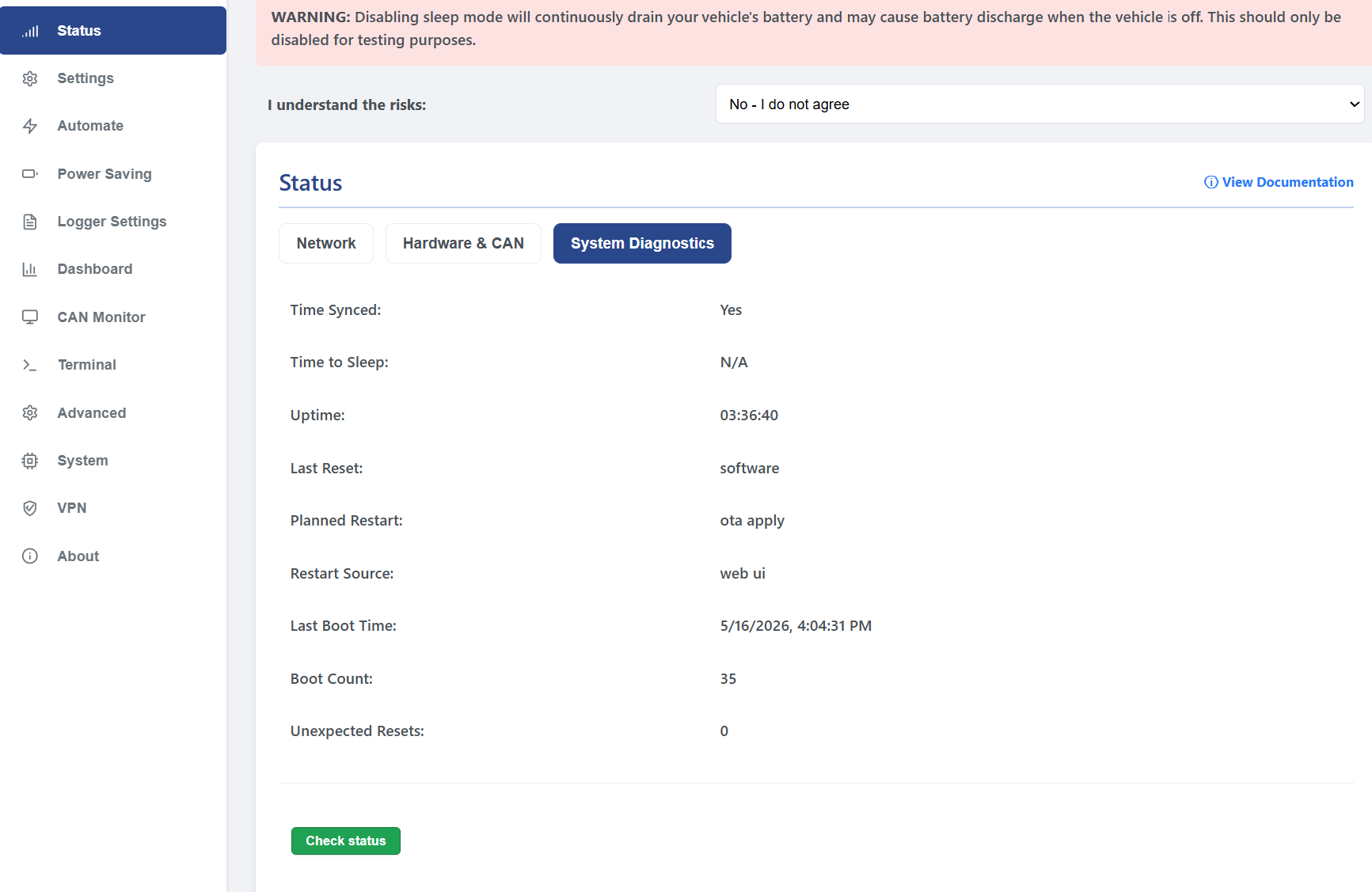
3. System Diagnostics
This tab contains critical metrics for ensuring the device is operating safely, tracking its reboot history, and managing power consumption.
- Time Synced: Shows "Yes" if the device has successfully pulled the current time via NTP. Note: Time sync is strictly required for secure HTTPS/TLS certificate verification and for triggering Scheduled Wakeups.
- Time to Sleep: A live, dynamically updating countdown timer showing exactly how many minutes and seconds remain before the device enters deep sleep to save your car battery. If sleep is disabled, this displays "N/A".
- Uptime: How long the device has been continuously powered on and running since its last reboot.
- Last Reset: The hardware-level reason for the last reboot (e.g., Power On Reset, Software Reset, Watchdog Timer).
- Planned Restart: Shows if the device was intentionally rebooted by a specific system task, such as a Firmware Update or the user clicking "Submit Changes".
- Restart Source: Tells you why the device woke up from deep sleep. This will indicate if it was woken by CAN bus activity, a scheduled timer, or a voltage spike from the engine turning on.
- Last Boot Time: The exact local date and timestamp of the last boot.
- Boot Count: The total number of times the device has booted since the tracker was last cleared.
- Unexpected Resets: A cumulative counter of crashes or forced reboots. If this number is steadily climbing, it indicates unstable power from the OBD2 port or a potential firmware issue.