Vehicle Groups (Advanced Automate)
The Vehicle Groups tab is the core of the WiCAN Pro Automate engine. Unlike the flat lists in the Standard or Custom tabs, Vehicle Groups allow you to build intelligent, hierarchical polling profiles.
By grouping parameters together, you can apply conditional logic (e.g., only poll when the engine is running), assign unique Group MQTT topics, and prioritize CAN bus bandwidth using independent polling intervals.
1. Group-Level Configuration
When you click "+ Create New Vehicle Group", a new group container is generated. You can have multiple groups running simultaneously, each with its own rules.
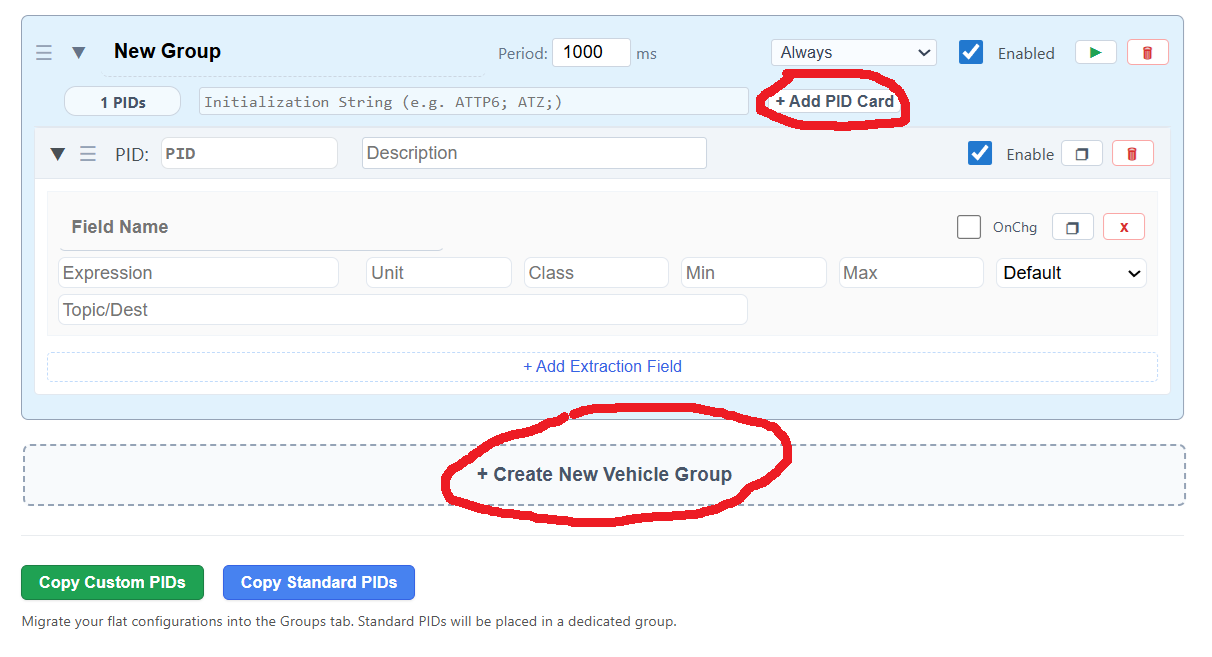
Group Header Settings
At the top of each group, you define how and when the group operates:
| Setting | Description |
|---|---|
| Group Name | A descriptive label for the group (e.g., Battery_Cells or High_Speed_Dash). |
| Period (ms) | The baseline polling interval for every PID inside this group. |
| Condition | The logic determining when this group is allowed to poll the CAN bus. |
| Enabled | A master toggle to instantly turn the entire group on or off. |
| Initialization String | (Optional) Commands sent to the OBD chip before this group begins polling (e.g., ATTP6; ATZ;). |
Conditional Execution Options
The Condition dropdown is one of the most powerful features. It prevents unnecessary CAN traffic:
- always: The group polls continuously as long as the device is awake. You should only use this when the module you wish to query is always active when the CAN bus is active. Using this when the module is inactive, will cause massive timeouts, affecting PIDs in other groups.
- voltage: The group only polls when the vehicle battery voltage is above the PID Polling Min Voltage. You can set the threhold using the PID Polling Min Voltage: range field.

- engine_running: The group only polls when the WiCAN detects the engine is actively running (RPM > 300). In order for this to work you must have a PID called RPM. When the PID is returned, it gets saved into a json object. This oject will get used for the calculation. If the vehicle is turned off, the RPM should be report back to 0 before the PCM modules turns off.
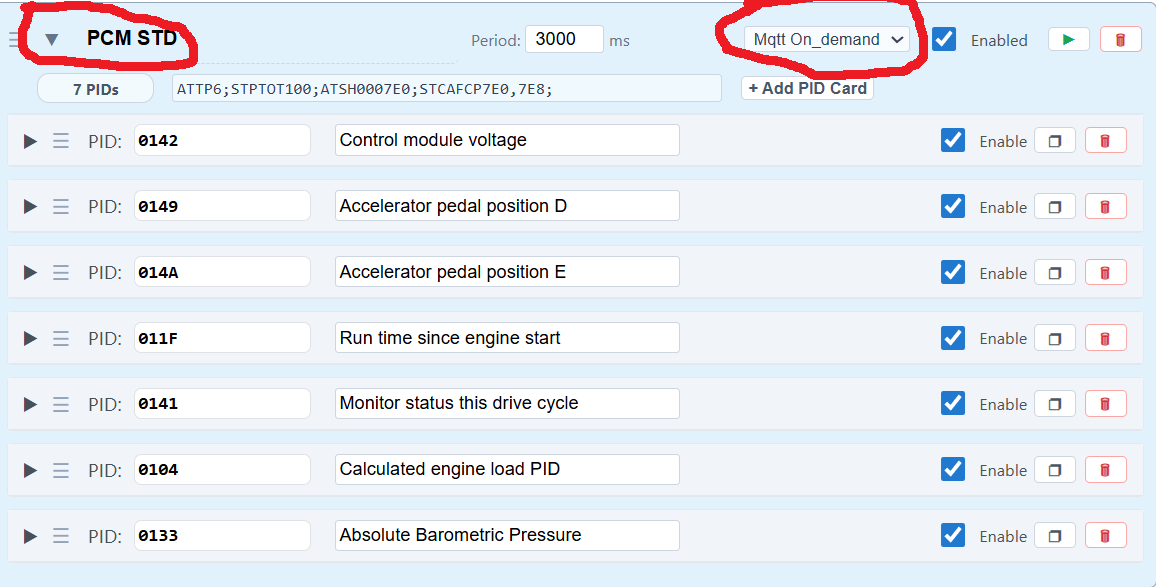
- mqtt_on_demand: The group remains dormant and only executes a polling sweep when explicitly commanded via an incoming MQTT message. (See Section 6 below for details).
- Check Custom PID: Standard conditions like
Engine Runningrely on standard OBD2 RPM requests. If you drive an Electric Vehicle (EV), or if you only want to poll data when your vehicle is in a specific state (like actively charging or in Drive), standard conditions won't work. (See Section 7 below for details).
4. Advanced Routing: The MQTT_Grp Destination
While you can route any individual extraction field to a specific Topic/Dest, Vehicle Groups introduce a unified, highly-efficient routing method:
- Set the Group MQTT Topic: In the Group Header, define a master topic (e.g.,
vehicle/tesla/battery). - Set Field Destination: Inside your PID's Extraction Field, change the Destination Type dropdown to
MQTT_Grp. - The Result: All fields within that group set to
MQTT_Grpwill be synchronized, aggregated, and published as one bulk JSON payload to that single master topic. This drastically reduces MQTT broker traffic. It also strictly respects the "On Change" parameter and automatically clears stale/ghost parameters when the vehicle turns off or a query times out, keeping your dashboard perfectly accurate.
5. UI Tools: Drag-and-Drop & Testing
Drag-and-Drop Reordering
The Automate engine processes groups and PIDs in top-down order.
- Reorder Groups: Click and hold the
☰icon in the Group Header to drag the entire group up or down the list.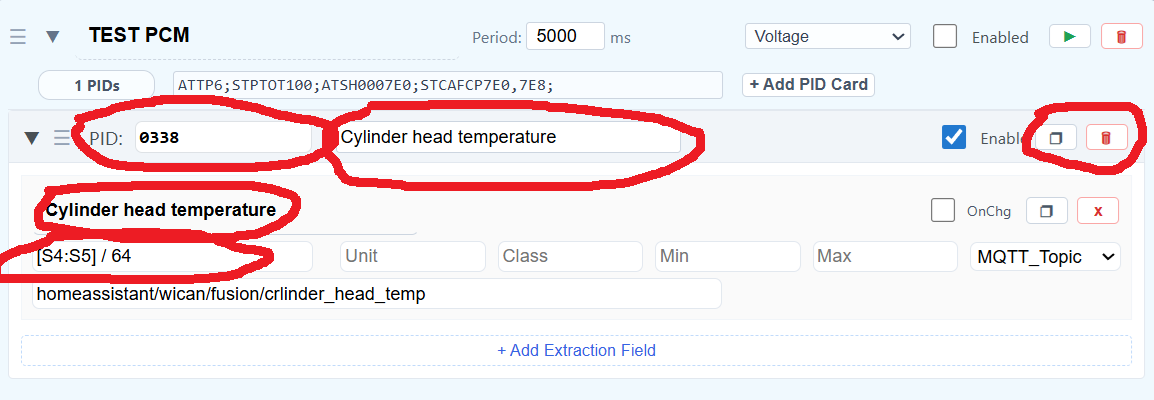
- Move PIDs: Click and hold the
☰icon on a PID Card to drag it up or down, or even drag it out of its current group and drop it into a different group. This is incredibly useful if you want to quickly change a PID's polling frequency—just drag it from a1000msgroup and drop it into a5000msgroup.
!WARNING Be careful when moving PIDs between groups! If a group relies on a specific Initialization String to talk to a specific ECU/module address, dropping a PID meant for a different module into that group will cause the request to fail.
The Live Testing Console
Before saving your configuration, you can test a group live against your vehicle:
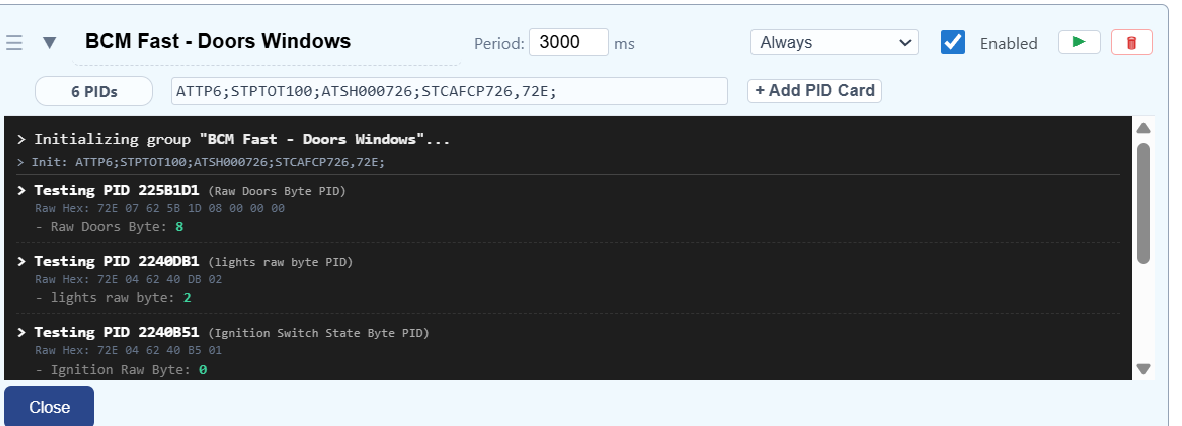
- Click the green Play (►) button in the Group Header.
- A terminal window will appear at the bottom of the group.
- The WiCAN will execute the Initialization String, poll every enabled PID in the group, and display the Raw Hex response alongside your calculated math results.
6. How mqtt_on_demand Works
If you set a group's condition to mqtt_on_demand, the WiCAN Pro will load the group into memory but will never poll it automatically. It sits idle, saving maximum CAN bandwidth, until you explicitly tell it to run via MQTT.
This is perfect for heavy, multi-frame data requests that you only need occasionally, such as:
- Querying the vehicle's VIN.
- Pulling a massive list of battery cell voltages only when a charging session begins.
- Requesting full diagnostic trouble codes (DTCs) via a button on your dashboard.
Triggering via Home Assistant
To trigger an on-demand group, your home automation system must publish a specific JSON payload to the WiCAN's RX command topic.
Understanding the Configuration
group_name: This must exactly match the name of the group as defined in your WiCAN Vehicle Groups tab.timeout: Defined in seconds. In the example above, the WiCAN will poll the group for 120 seconds and then stop. If you set"timeout": 0, the group will poll continuously until you send thepayload_offcommand.command_topic/state_topic: You must replace9c139e8f55e5with your WiCAN's specific device address...
Here is an example of a Home Assistant Switch that turns a group named "PCM STD" on for 120 seconds, and then automatically turns it off.
    - name: "Fusion Toggle STD PCM Group"
      unique_id: "fusion_toggle_std_pcm_group"
      default_entity_id: "switch.fusion_toggle_std_pcm_group"
      state_topic: "wican/9c139eXXXXXX/cmd"
      command_topic: "wican/9c139eXXXXXX/cmd"
      payload_on: '{"command": "set_group", "group_name": "PCM STD", "active": true, "timeout": 120}'
      payload_off: '{"command": "set_group", "group_name": "PCM STD", "active": false}'
      state_on: "ON"
      state_off: "OFF"
      optimistic: true
7. Why use "Check Custom PID"
The WiCAN Pro's Vehicle Groups feature allows you to set conditions that dictate when a group of PIDs should be actively polled (e.g., Always, Engine Running, or Voltage).
However, standard conditions like Engine Running rely on standard OBD2 RPM requests. If you drive an Electric Vehicle (EV), or if you only want to poll data when your vehicle is in a specific state (like actively charging or in Drive), standard conditions won't work. Also, using MQTT on demand to turn off/on groups based on entities, can be tricky, as the entity data could frozen/stale.
The Check Custom PID (Gatekeeper) condition solves this by allowing you to define a completely custom prerequisite check directly on the hardware level.
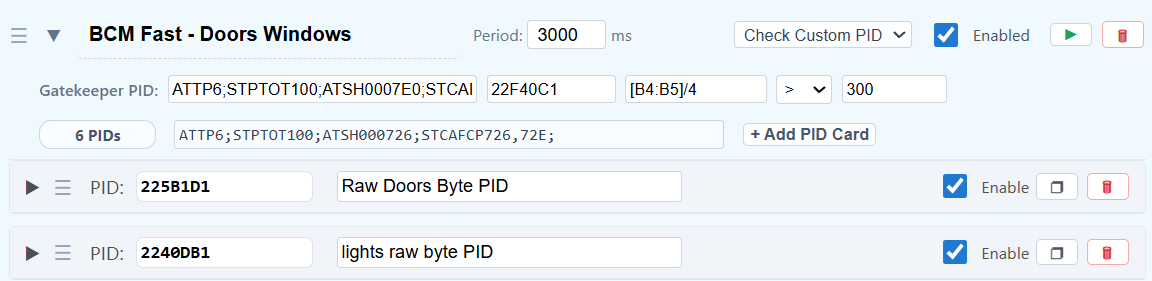
How It Works
When a group is set to Check Custom PID, the WiCAN Pro will first send a single, specific PID request to the vehicle.
- It evaluates the response using your custom math expression.
- If the result meets your criteria (evaluates to true or > 0), the WiCAN Pro considers the condition "met" and proceeds to poll the rest of the PIDs in that group.
- If the condition fails, the WiCAN Pro skips the group entirely, keeping your CAN bus quiet and saving battery.
Note: The Custom PID logic acts as a robust "Gatekeeper." It runs in a protected memory space and features strict internal queue flushing, meaning it can safely evaluate massive, multi-frame payloads without leaking memory or succumbing to cellular network jitter.
Typical Use Cases
- EV "Engine Running" Detection: EVs do not report standard RPM. You can set the custom condition to check the High Voltage Contactor state or the BMS "Ready" flag to determine if the car is on.
- Charging-Only Polling: You can create a group of battery-cooling and charging-speed PIDs that only poll when the vehicle reports that the charge port is connected.
- Gear-Specific Polling: Only poll aggressive transmission diagnostics when the vehicle is physically shifted into 'Drive'.
How to Configure
- Access the WiCAN Pro Web UI and navigate to Automate > Vehicle Groups.
- Create a new group or edit an existing one.
- In the Group Header, find the Condition dropdown and select
Check Custom PID. - Once selected, new configuration fields will appear specifically for the condition check:
- Condition Init: The header/initialization string required for your target ECU (e.g.,
ATSH7E4). - Condition PID: The hex command to request the state (e.g.,
220101). - Condition Expression: The math used to extract the value (e.g.,
B4). - Target Value / Operator: (Define what constitutes a "True" state, such as
> 0or== 1).
- Condition Init: The header/initialization string required for your target ECU (e.g.,
- Set your Period (ms). This period dictates how often the WiCAN Pro checks this custom condition.
- Add your standard PID cards below it as usual.
!TIPKeep It Simple: The custom condition PID is polled frequently to check the state. Ensure the PID you choose for the condition is lightweight and responds quickly so it doesn't cause unnecessary bus wakeups.